QR Code Photo Sharing for Events: How It Works (No App, No Sign-Up)
July 14, 2026 · 3 min read
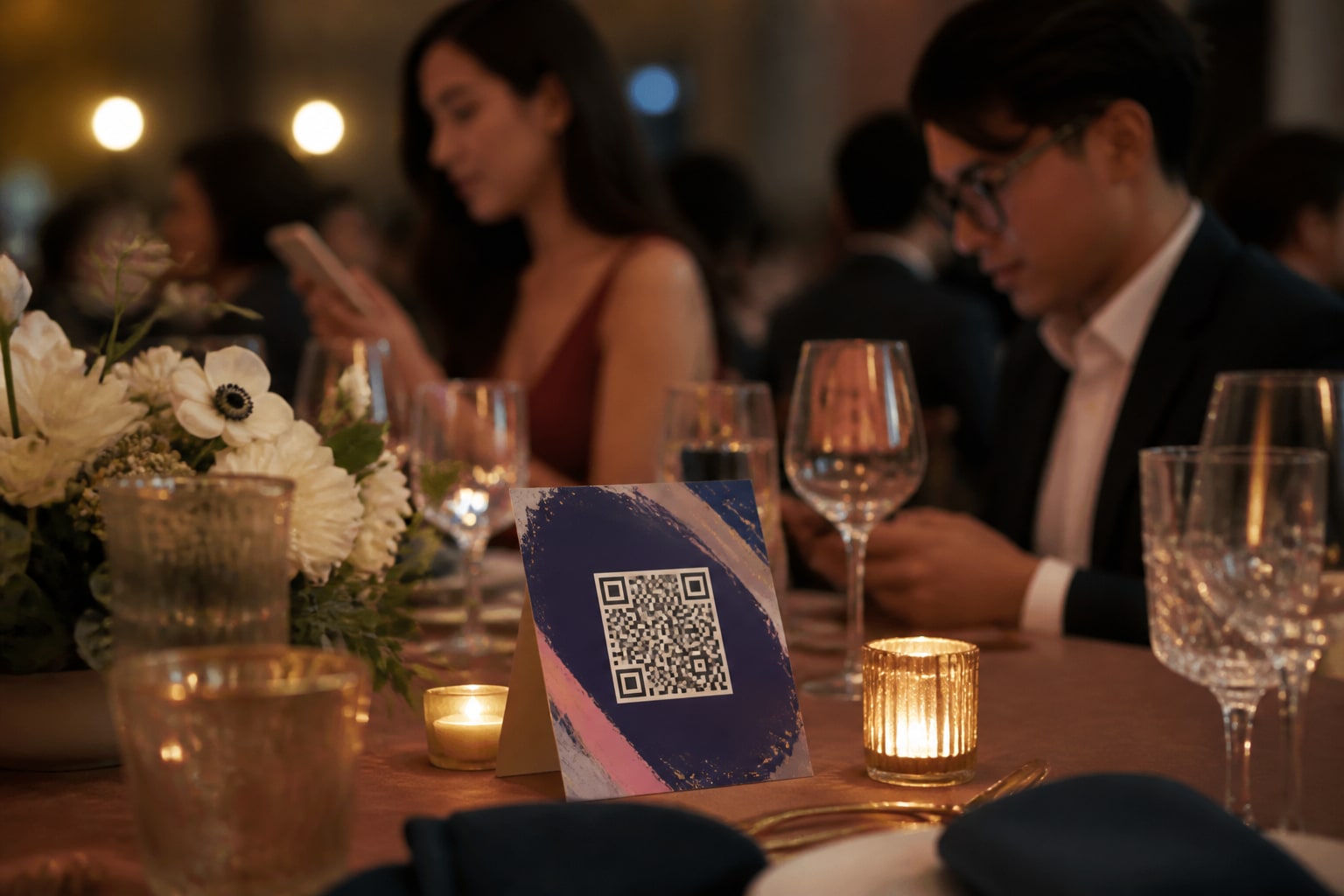
Everyone at your event is holding a camera. The problem isn't taking photos — it's getting them all in one place afterwards. QR-code photo sharing fixes that in the simplest way possible: guests scan a code, upload straight from their phone browser, and every photo lands in one shared gallery. No app store, no accounts, no group chat that half the room ignores.
Here's exactly how it works, for both your guests and you.
What "QR code photo sharing" actually means
A QR code is just a link in visual form. Point a phone camera at it and it opens a web page — in this case, your event's upload page. Because it's a normal web page, there's nothing to install. That single detail is the whole game: when guests have to download an app, participation drops sharply, and most of the room never bothers.
The guest experience (about 10 seconds)
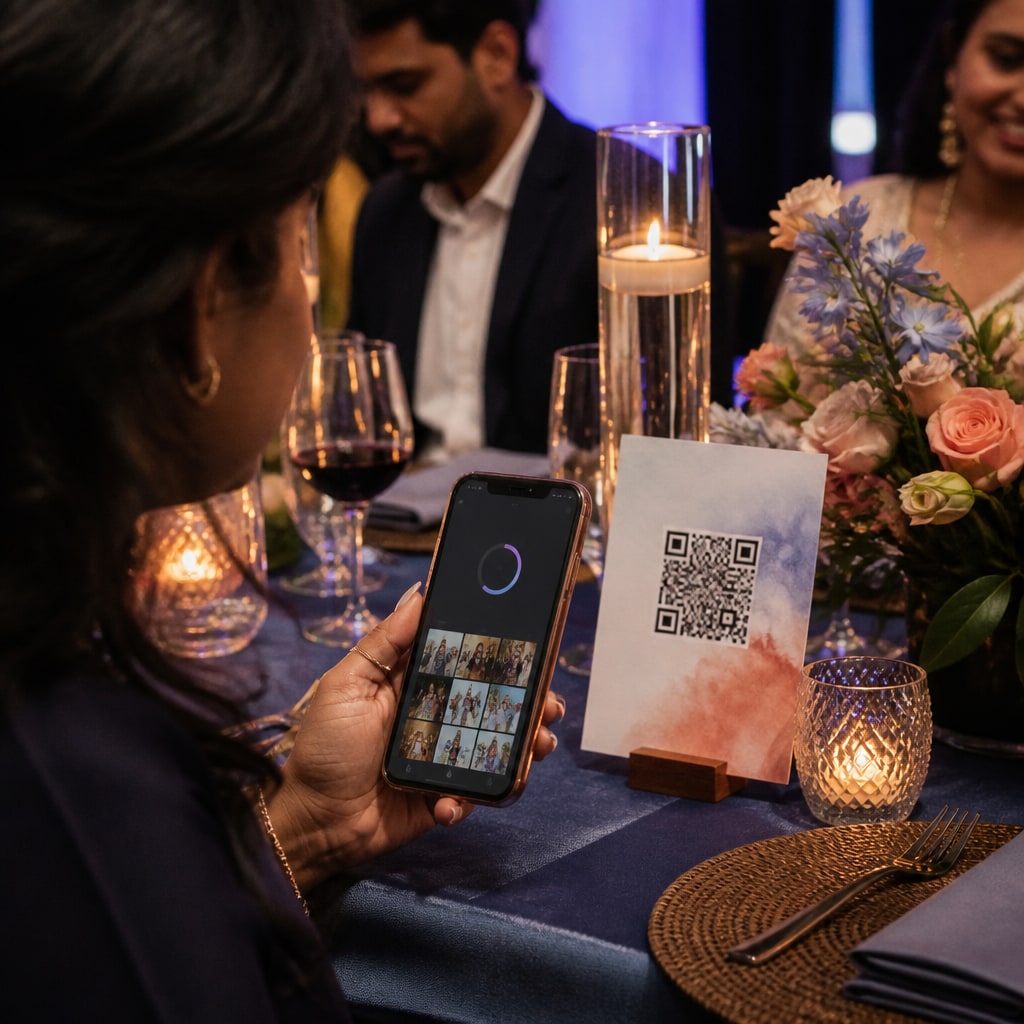
- Scan the QR on the table card, sign, or the big screen — the phone's built-in camera does it, no special app.
- Add a name (optional) so you know who shared what.
- Upload photos and videos straight from the camera roll. That's it — they appear in the live gallery for everyone to see.
No login, no password, no "download to continue." It works on older phones too, because it's just the browser.
The host experience
- Create the event and you instantly get a QR code and a shareable link.
- Put the QR where guests will see it — table cards, a welcome sign, or on a TV.
- Watch the gallery fill up live, approve photos if you want to, and download the whole album when the night is over.
If you want the wow factor, you can also put the live gallery on any TV or projector so photos appear on the big screen the moment they're uploaded.
Why QR beats the usual alternatives
- vs. a dedicated app: no download means far more guests actually take part.
- vs. a WhatsApp/group chat: no compression, no 50-person thread, and people who aren't in the group can still contribute.
- vs. AirDrop: works across iPhone and Android, and from across the room — not just for people standing next to you.
- vs. a shared cloud album: no one has to have the right account or app installed.
Where to put the QR code
- Table cards / tents — the highest-traffic spot; one per table.
- A welcome sign at the entrance so people scan on arrival.
- The big screen — a persistent "scan to add your photos" corner on the slideshow.
- A printed card guests can take with them.
A note on privacy and moderation
Good QR photo tools let you stay in control: turn on approve-before-live so nothing appears until you say so, or make the event private so only you see the uploads. Look for tools that strip location data from photos and let guests delete their own uploads — it keeps everyone comfortable.
The takeaway
QR-code photo sharing works because it removes every reason a guest might not share: no app, no account, no friction. Put a code on the tables, and you walk away with the whole event captured from everyone's point of view — not just the few photos people remember to send you later.
Want to see it in action? Create your first event free — you'll have a QR code in under two minutes.
Ready to collect every photo?
Create a free event, share the QR, and watch the gallery fill up — no app for your guests.
Related reading
How to Capture Every Angle of Your Event (Not Just the Photographer's)
One photographer sees one angle at a time. Here's how to capture your whole event from every guest's point of view — automatically, in one shared gallery.
How to Set Up a Live Photo Wall for Your Event (on Any TV)
Turn any TV or projector into a live photo wall your guests fill in real time. A simple setup with no AV team and no expensive social-wall software.
How to Get Everyone's Photos Off Their Phones After a Party (Fast)
Everyone took photos, no one shared them. Here's the fastest way to gather every party photo into one place — no app, no group chat, no chasing.